The complete guide: getting it into your DAW, connecting it to an AI, describing a plugin that comes out right, and living with it afterwards — automation, MIDI, rendering, saving and handing finished plugins to other people.
VibePlugin is a VST3 plugin. It loads in any DAW that supports VST3 — FL Studio, Ableton Live, Reaper, Bitwig, Studio One, Cubase and others. There are two of them: VibePlugin FX for audio tracks, and VibePlugin Synth for instrument tracks.
Grab it from the Downloads page. macOS builds are signed and notarized by Apple, so there is no security warning to click through.
.vst3 bundles into your VST3 folder| macOS | ~/Library/Audio/Plug-Ins/VST3 |
| Windows | C:\Program Files\Common Files\VST3 |
| Linux | ~/.vst3 |
Every DAW keeps a cached list of the plugins it knows about, so it will not notice a new one until you tell it to look again. Find your DAW below:
| DAW | Where to rescan |
|---|---|
| FL Studio | Options ▸ Manage plugins ▸ Find more plugins. Tick Verify plugins if it still doesn't show up. Newly found plugins land in the Installed ▸ New list. |
| Ableton Live | Settings ▸ Plug-Ins ▸ turn on Use VST3 Plug-In System Folders, then press Rescan. |
| Reaper | Options ▸ Preferences ▸ Plug-ins ▸ VST ▸ Re-scan (use Clear cache and re-scan if it's stubborn). |
| Bitwig Studio | Settings ▸ Locations ▸ Plug-in Locations ▸ Rescan Plug-ins. |
| Studio One | Studio One ▸ Options/Preferences ▸ Locations ▸ VST Plug-Ins ▸ Reset Blocklist, then restart. |
| Cubase / Nuendo | Studio ▸ VST Plug-in Manager ▸ the refresh icon. Check the Blocklist tab too. |
| Logic Pro | Not supported. Logic loads only Audio Units, and VibePlugin is VST3 only. Run it in any other DAW on the same Mac, or use an AU-wrapper host inside Logic. |
They appear as VibePlugin FX under effects and
VibePlugin Synth under instruments, both from the manufacturer
VibePlugin. Search your plugin browser for vibe — that's the
fastest way to check the scan worked.
.vst3 is a
folder that looks like a file. Copy it whole; don't open it and copy the
contents.xattr -dr com.apple.quarantine ~/Library/Audio/Plug-Ins/VST3/"VibePlugin FX.vst3"C:\Program Files\Common Files\VST3 folder. If you put it somewhere
custom, add that folder to your DAW's VST3 search paths.The download contains two separate plugins. They share the same editor and the same AI, but your DAW treats them completely differently, and picking the wrong one is the most common reason a first attempt makes no sound.
| VibePlugin FX | VibePlugin Synth | |
|---|---|---|
| Type | Audio effect | Instrument |
| Goes on | An audio / mixer track that already has sound running through it | An instrument track that you play with MIDI |
| Audio in | Stereo in, stereo out | None — it generates sound |
| Responds to MIDI notes | No | Yes |
| Ask it for | Saturators, delays, reverbs, compressors, filters, distortion, choruses, bitcrushers, transient shapers… | Synths, drum machines, samplers, pad generators, arpeggiators, noise boxes… |
Both are stereo. A mono track feeds the same signal to both channels, which is fine — but there is no mono-only or multi-out version, and there is no sidechain input. If you want a ducking effect, ask for an envelope follower on the main input rather than a sidechain.
It's an ordinary instrument: put it on an instrument track, point a MIDI clip or your keyboard at that track, and play. The host converts note numbers to frequency for the generated code, so anything it makes is automatically playable across the whole keyboard.
Generated interfaces often include an on-screen keyboard as well — clicking it plays notes directly, which is handy for auditioning without arming anything.
This is the one piece of setup VibePlugin can't do for you. The plugin is the workshop — the AI is what actually writes the DSP and the interface — so until you've told it how to reach a model, Generate has nothing to ask.
VibePlugin itself is free and open source. What can cost money is the AI — and even that is optional. There are three routes, and you pick between them with the Generation source setting and the Model dropdown in the toolbar. Set one up now; you can switch at any time, and swapping routes doesn't change anything about the plugins you've already made.
One-click generation. Requests go straight from the plugin to Anthropic.
Copy a prompt out of the plugin, paste Claude's reply back. No key, no card.
One-click generation with no API key to manage. We run it on our key.
Not sure? Start with route 2. It costs nothing, needs no key and no signup, every feature works through it, and you can try the plugin properly before deciding whether the one-click routes are worth it to you. Use route 1 if you already have an Anthropic API key. Route 3 exists only for people who want neither a key nor the copy-paste step.
The dropdown shows the models for whichever generation source is selected in Settings. These are the options:
There is also a Thinking control next to it. More thinking gives better results on complicated plugins and costs more; Medium is a sensible default. Big, elaborate interfaces are worth generating with the strongest model.
The most direct option if you already have an Anthropic account. The plugin talks to Anthropic directly and you're billed by them for exactly what you use.
Create one at console.anthropic.com.
It looks like sk-ant-…. You'll need some credit on that Anthropic account.
Set Generation source to My own Anthropic API key, paste the key into the Anthropic API key field, and press Save settings. The key is stored locally on your machine and never sent anywhere except Anthropic.
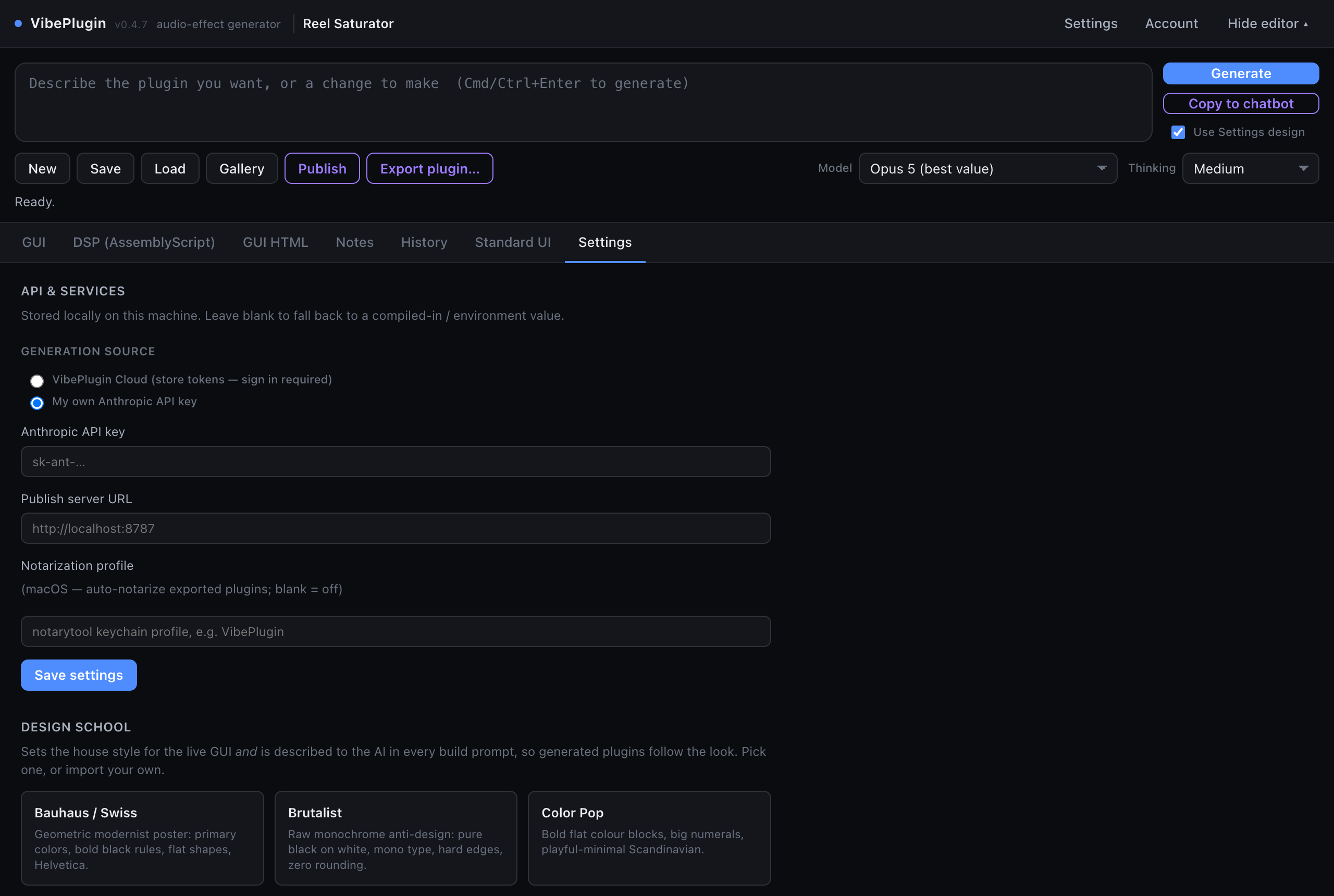
The Model dropdown now lists the Anthropic models. Type a prompt and press Generate. That's the whole loop from now on.
This route needs no API key and no card. VibePlugin writes the prompt for you; you paste it into claude.ai and paste the reply back. Every feature of the plugin works this way.
A dialog opens with a complete, self-contained prompt already built from your description and copied to your clipboard.
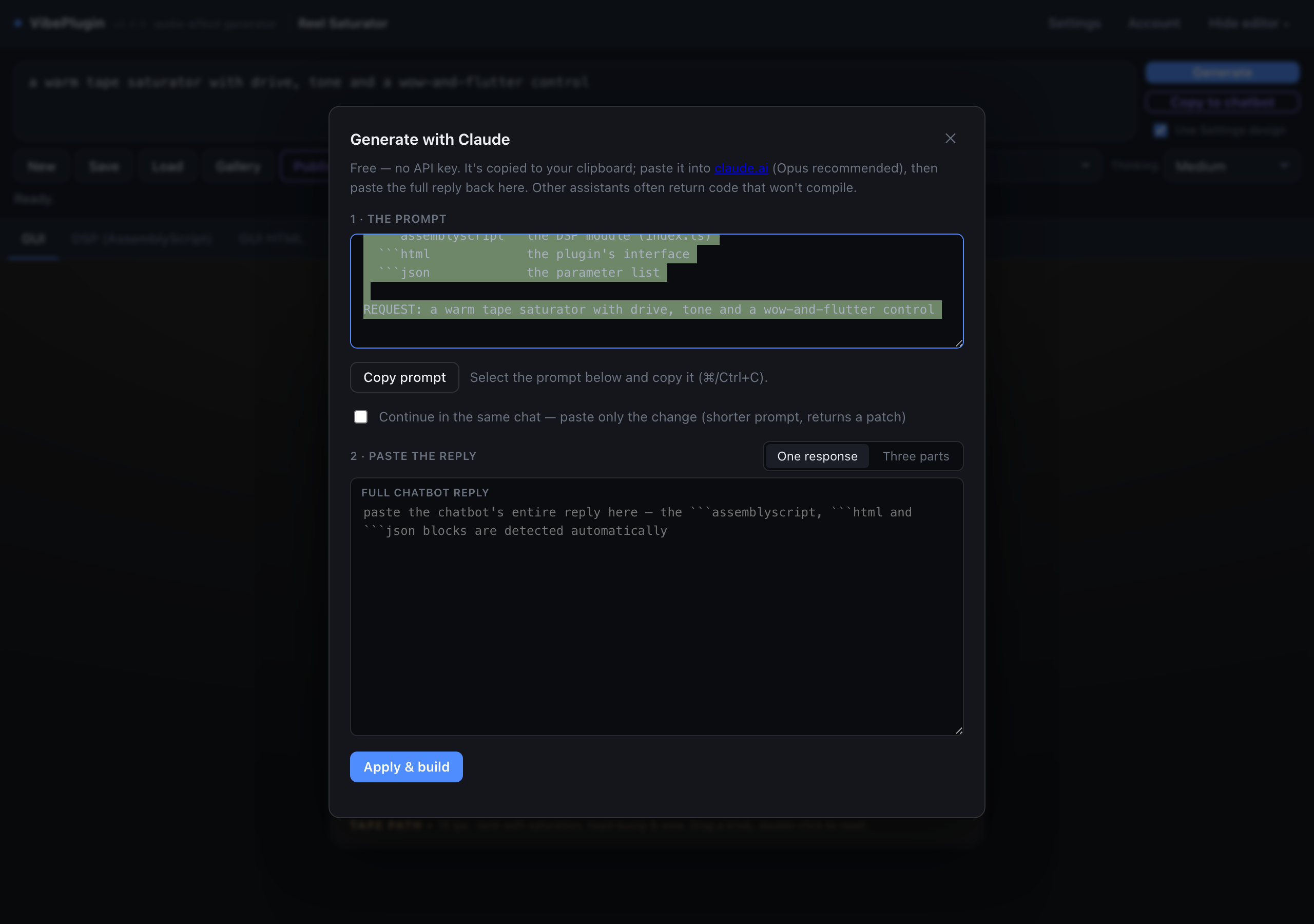
Open a new conversation at claude.ai, pick Opus, and paste. The prompt tells the model exactly what to produce: three fenced code blocks — the audio code, the interface, and the parameter list. Let it finish completely; these replies are long.
Select the entire response and paste it into the big box in the dialog. You don't need to pick the code blocks out yourself — VibePlugin finds them. If the answer got cut off, ask it to continue and use the Three parts mode to paste each block separately.
VibePlugin extracts the code, compiles it, and loads the plugin — exactly as if it had called an API. If the code doesn't compile, the dialog shows the error and gives you a Copy fix request button: paste that back into the same conversation, paste the new reply, and try again.
The convenience option: one-click generation, no API key to create or manage. Your requests run on our key and are billed against a prepaid credit balance.
The Account button is in the top-right of the plugin window. Create an account or sign in to an existing one. Your remaining credits are then shown in the header, next to the button.
With an empty balance, Buy credits opens a checkout page. Pick a pack and pay; your balance updates against the email you signed up with.
Set Generation source to VibePlugin Cloud in Settings, then pick one of the Cloud · entries in the Model dropdown. Generate as normal.
It is not a subscription and not a flat fee per prompt. You buy a balance up front, and each generation costs an amount based on how much work the AI actually did — how long the code and interface came out, how much the model had to think, and which model you picked. That's a wide spread: a simple effect sits near the bottom of the range below, an elaborate synth with a large interface can go well past the top of it.
| What | Roughly |
|---|---|
| 1 credit | $0.01 |
| A complete plugin | about $0.40 – $1.50 (40–150 credits), and more for an elaborate one |
| A small edit ("make the tone darker") | considerably less |
| Haiku 5.5, the cheapest | the bottom of that range |
| Opus 5.5, the strongest model | the top of it, and past it on complex plugins |
After every generation the plugin tells you exactly what it charged and what your balance is, so you're never guessing. If you run out, generation pauses until you top up — plugins you already made keep working, and so does everything else in the app.
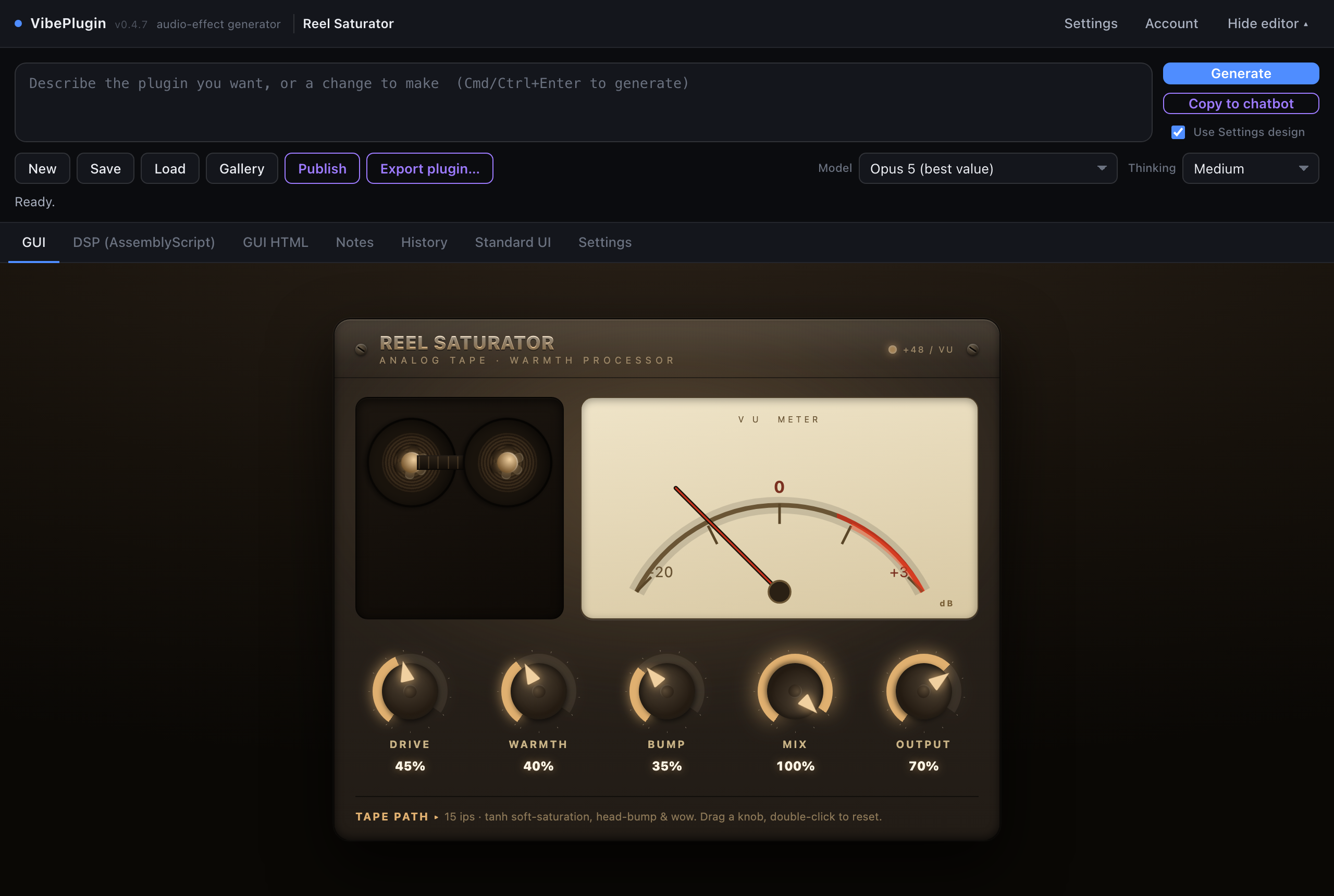
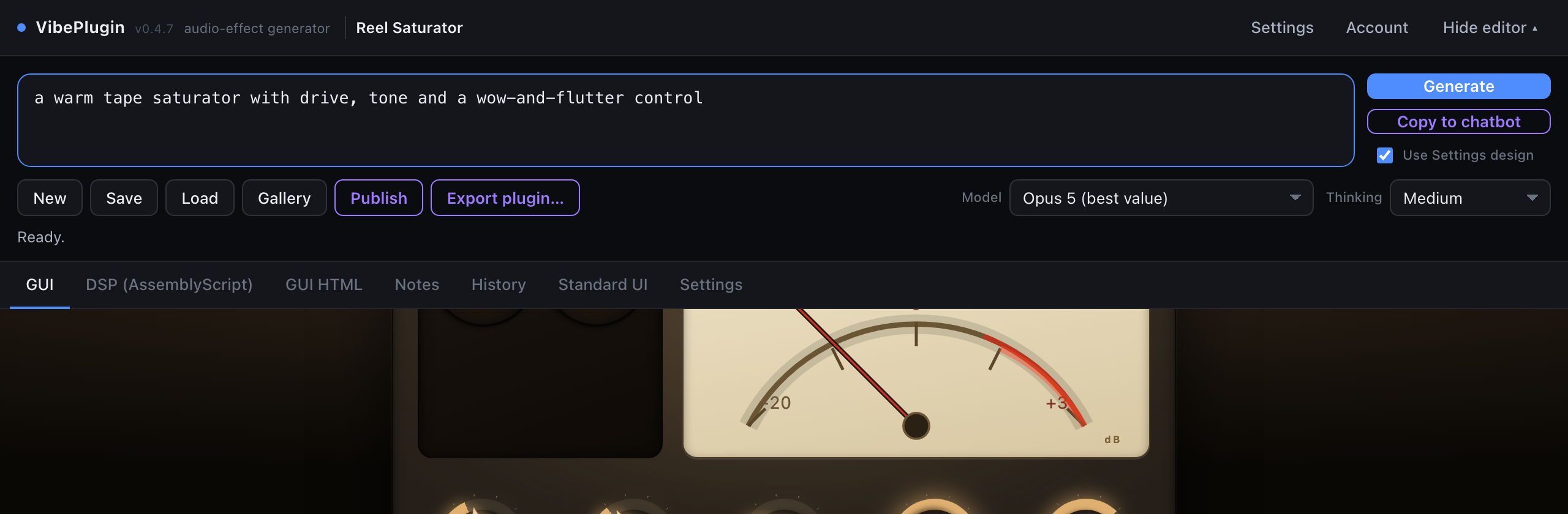
With a route from step two set up, you're ready to build something. Add VibePlugin FX to an audio track that's playing something — a drum loop or a guitar part is ideal, because you'll hear the effect immediately. Open the plugin window and you'll see this:
Type it into the box at the top in plain language. Be specific about the controls you want — that is what becomes the knobs. For example:
a warm tape saturator with drive, tone and a wow-and-flutter control
Or press Cmd+Enter (Ctrl+Enter on Windows and Linux). A plain Enter just adds a new line, so you can write a long multi-line description without setting a build off half-way through. VibePlugin asks the AI for the audio code and an interface, compiles the result, and loads it live. This usually takes a few seconds to about a minute depending on the model and how complex the plugin is. You can watch the model's reasoning by clicking See reasoning under the status line.
The interface in the GUI tab is live and wired to the audio. Your DAW can automate the knobs too — they show up as normal plugin parameters.
Save writes a small .vstai file anywhere on disk,
which you can reopen later with Load. Your DAW project also
stores the plugin, so reopening the session brings it back exactly as it was — no
need to save separately just to keep your work.
Everything in the window, top to bottom. You can ignore most of it and still make plugins — this section is here for when you want to know what a particular button does.
| VibePlugin v0.4.8 | The version badge next to the name is the exact build the DAW loaded. Worth checking after an update — DAWs sometimes keep an old copy cached. |
| Settings | Opens the Settings tab: API keys, generation source, design school and diagnostics. |
| Account | Only relevant for the paid cloud route — sign in, check your balance, top up. If you use your own key or the Claude copy-paste route, you never need it. |
| Hide editor ▴ | Collapses the whole generator away so the window shows just your plugin's interface, like a normal plugin. Press it again to bring the editor back. This is how you'll want it once a plugin is finished. |
| Generate | Builds (or edits) the plugin using the selected model. Cmd/Ctrl+Enter in the prompt box does the same; a plain Enter makes a new line. |
| Copy to chatbot | The free route. Builds a complete prompt, copies it to your clipboard, and opens the paste-back dialog. No API key involved. Despite the label, paste it into Claude — see route 2. |
| Use Settings design | When ticked, the design school you picked in Settings is described to the AI, so new interfaces match that house style. Untick it to let the AI design the interface however it likes — better for a one-off with a strong visual idea, worse for a consistent-looking collection. |
| New | Clears the current creation and starts from nothing. Save first if you want to keep what's loaded. |
| Save / Load | Writes or reads a .vstai file — the whole plugin (code, interface,
parameters) in one small portable file. |
| Gallery | Browses the online gallery from inside the plugin and loads any example straight into this instance. The fastest way to hear what the thing can do, and to study prompts that worked. |
| Publish | Uploads your creation to the public web gallery, where it plays live in a browser. |
| Export plugin… | Bakes the current creation into its own standalone, locked .vst3 —
see export. |
| Model | Which AI writes the code. The list changes depending on the generation source selected in Settings. |
| Thinking | Low / Medium / High / Max — how long the model reasons before answering. Higher means better results on complicated plugins, slower, and more expensive. Medium is a good default; raise it for a full synth, lower it for "make the knob bigger". |
Under the toolbar. It tells you what's happening — Generating…, Compiling…, Ready. — and after a cloud generation, what it charged. When a model has been thinking, a ▸ See reasoning link appears: click it to read how the model approached your request. That's often the quickest way to understand why you got something you didn't expect.
| GUI | Your plugin's live interface. Not a preview — this is the real thing, wired to the audio engine. |
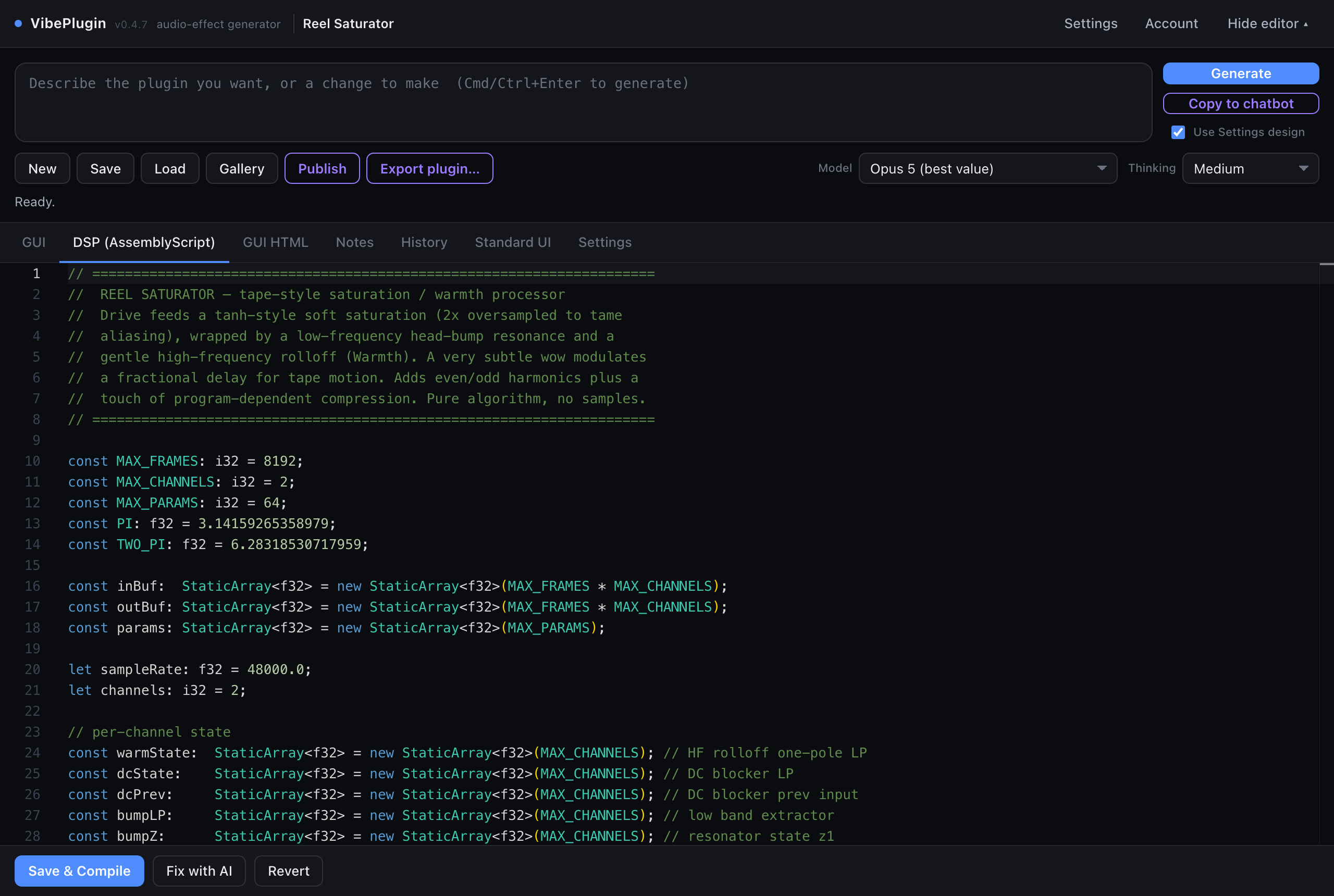
| DSP (AssemblyScript) | The audio code the AI wrote, in a full editor. Edit and recompile if you like. |
| GUI HTML | The interface source — HTML, CSS and JavaScript. Same deal. |
| Notes | The AI's explanation of what it built, plus compiler output and any errors. Read this when a build fails. |
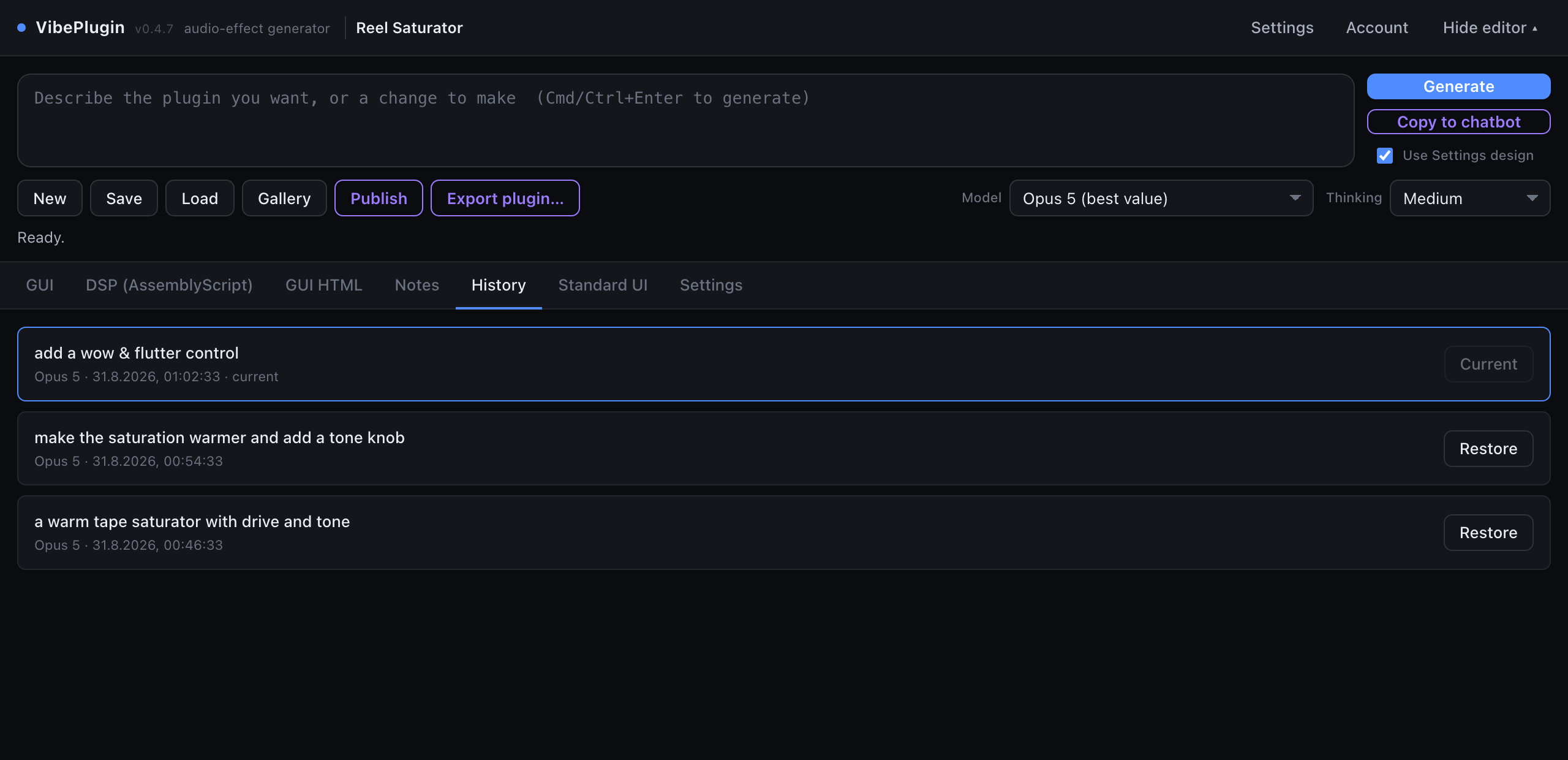
| History | Every version this instance has had, newest first, each restorable. |
| Standard UI | The house component kit — the knobs, sliders and meters generated interfaces are built from. Editable, so you can change the look of everything you generate from here on. |
| Settings | Keys and generation source, the ten design schools, and the diagnostics log. |
This is the part that decides whether you get something great or something disappointing. The model is writing real audio code from scratch — it will make whatever you describe, so the more precisely you describe it, the less you'll have to fix afterwards.
The single highest-value habit. Controls you name become knobs; controls you don't name get guessed at, or baked in as fixed values you can't change afterwards.
make it sound warm
You'll get something, but you have no idea which parameters you'll be able to adjust — and "warm" means five different things.
a tape saturator with Drive (0–100%), a Tone tilt-EQ knob, Wow & Flutter
depth, and a Mix knob for parallel blending
Four named knobs, and each one does a thing you can hear.
If a control has a natural unit, give it. a delay time knob from 20 ms to 2 seconds,
with a tempo-sync switch gets you a usable range; "a delay knob" might get you
0–100 ms and nothing useful. This matters more than it sounds, because those ranges
become the ranges your DAW automates over.
Reference points work well — the model knows what famous gear is supposed to sound like.
a bucket-brigade style analogue delay: dark repeats that get murkier each pass, gentle
wow on the delay line, self-oscillates when feedback goes past 90% gives it far more
to work with than "an analogue delay".
The look is generated too, so it's fair game: lay it out as three big knobs in a row
with a VU meter above them, vintage cream-and-brown faceplate with chunky
metal knobs, add a waveform display showing the incoming signal. If you'd
rather it match a consistent house style, pick a design school in Settings and leave
Use Settings design ticked.
Don't try to specify a 30-knob synth in one prompt. Get the core sound working, then add to it one message at a time — refinements are faster, cheaper and much more likely to land than one enormous request. A good sequence looks like:
a two-oscillator subtractive synth with a resonant lowpass filter,
ADSR envelope, and detune between the oscillators
add an LFO that can modulate pitch or filter cutoff, with
rate and depth knobs and a destination switch
add a simple stereo chorus after the filter with a bypass
switch, and make the whole panel darker with amber accents
use the mod wheel for dynamics and CC11 for expression is a
fair request, and the sustain pedal works for every instrument automatically.delay time synced to the host tempo, in note values or
a tempo-locked LFO is a reasonable thing to ask for.The prompt box doesn't go away after the first generation. Send another line and VibePlugin edits the plugin you already have instead of starting over. Useful things to say:
add a mix knob so I can blend it with the dry signalthe drive is too subtle — make it much more aggressive at the top of its rangeadd a VU meter above the knobsmake the interface darker and use a single accent colourEvery version — generated, AI-fixed or hand-compiled — is snapshotted onto a timeline in the History tab. Pick any entry and press Restore to go back to it; the audio engine, the interface and the code editors all roll back together.
Once a plugin exists, it is an ordinary VST3 and your DAW treats it like one. This section covers the things that matter when you actually make music with it rather than make it.
Every knob the AI creates is exposed to your DAW as a real, automatable plugin parameter. Move a knob in the plugin's interface and the DAW sees it move — so automation recording, parameter learn, and "last touched" mapping all work the way they do with any other plugin.
There is one quirk worth understanding, because it looks odd the first time:
| The parameter list always has 64 slots | VibePlugin can't know in advance how many knobs your plugin will have, so it publishes a fixed pool of slots to the DAW at load time. |
Unused slots are called Param 1…Param 64 |
Slots your plugin doesn't use keep their placeholder names. Ignore them — they do nothing. |
| Used slots take the real knob names | After a generation the first slots are renamed to Drive, Tone, Mix and so on, in the order they appear in the plugin. |
| The last slot is reserved | Slot 64 carries your DAW's tempo into the plugin. It isn't automatable and generated plugins never use it — which is why the real ceiling is 63 knobs. |
So: to automate Drive, look for a parameter actually called Drive in your DAW's automation list. The quickest route in most DAWs is to touch the knob in the plugin window and then use add automation for last touched parameter.
Param 3, that's
what happened — the automation itself is still pointing at the right control.
Regenerating changes the mapping. If you have automation written and then
ask for a substantially different plugin, slot 3 may no longer be the same knob. Automation
follows the slot, not the name. Refinements that only add controls are safe; a full rebuild
is not. If a project depends on written automation, save the .vstai and stop
regenerating that instance.
Because the knobs are normal parameters, your DAW's own MIDI-learn does the job: right-click a parameter (or use your host's remote-control mapping) and move a knob on your controller. VibePlugin doesn't need its own MIDI mapping layer.
A generated plugin renders offline exactly like it plays live, and needs no internet to do it. Freezing and bouncing tracks work normally. Two things to know:
The audio code runs in a sandboxed WebAssembly engine, which is fast but not free — expect
somewhat more CPU than a hand-optimised native plugin doing the same job. A handful of
instances is fine; forty of them on one project is asking a lot. If a specific plugin is
heavy, say so in the prompt (this uses too much CPU, simplify the oversampling)
— the model can usually make it cheaper.
The plugin window itself (the editor, the code tabs) also costs something while it's open. Use Hide editor ▴ or just close the window while you're mixing.
Each instance is completely independent — its own plugin, its own code, its own history. You can run a generated saturator on one track and a generated reverb on the next. What they share is the settings that live on your machine: your API key, the design school, and the Standard UI kit.
There are two independent places your creation lives, and it's worth knowing which is which.
| Where | What happens |
|---|---|
| Inside your DAW project | Automatic. The entire plugin — audio code, interface, parameter values — is stored in the project file when you save, the same way a normal plugin stores its preset. Reopen the session and it comes back, playing what it played before. You do not need to save a file separately just to keep working. |
A .vstai file |
Manual, via Save. A small portable file you can back up, reuse in another project, or send to someone else running VibePlugin. This is your only copy that survives independently of the project — there is no hidden library and no cloud backup of your creations. |
.vstai. A creation that exists only inside one
DAW project is one corrupted project file away from gone. It costs a second and the files
are tiny.
The plugin comes back exactly as you left it — parameter values are restored, the audio engine is set from them before anything plays, and the interface's knobs redraw at the saved positions. (A project saved with a much older version of VibePlugin may carry an interface that shows its defaults until you touch a control; the sound is right either way.)
.vstai
Anyone with VibePlugin can Load it — no key, no account, no internet
required, and nothing regenerates. If you want to give a plugin to someone who doesn't
run VibePlugin, use Export plugin… instead and hand them a real
.vst3.
You never have to look at code — but all of it is right there if you want it. The DSP (AssemblyScript) tab holds the audio code and GUI HTML holds the interface, both in a full editor with syntax highlighting.
Cmd/Ctrl+S works too).
The editors work offline and ship inside the plugin — there's no external editor and nothing is sent anywhere when you compile. Cmd/Ctrl+S compiles from either editor.
After every build, the Notes tab holds the AI's own explanation of what it made — which control does what, what the ranges are, anything it decided on your behalf. When a build fails, the compiler's errors land here too. It's the first place to look when something is confusing.
Generated interfaces are built from a shared component kit: the knobs, sliders, buttons and meters. The Standard UI tab is that kit's source, and it's editable.
Change the accent colour there and everything you make afterwards picks it up — much less work than asking for the same visual tweak in every prompt.
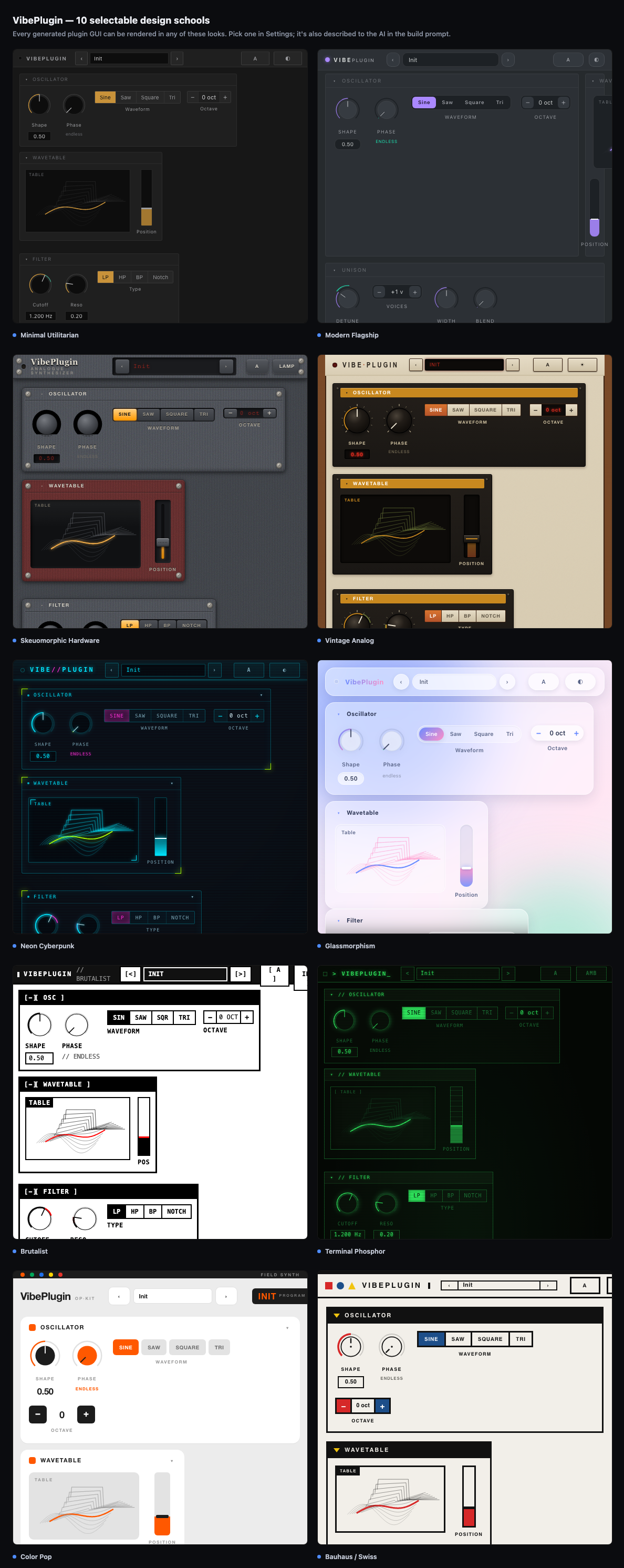
In Settings there are eighteen complete visual styles — minimal, vintage analog, brutalist, neon cyberpunk, glassmorphism, bauhaus, terminal phosphor, skeuomorphic, colour pop, modern flagship, pro tool, and seven studied from the best-selling synth plugins: hybrid indigo, mono flat, header bars, silver rack, digital FM, wood & taupe and hardware faceplate. Picking one does two things: it restyles the live interface, and it gets described to the AI in every build prompt so new plugins are designed to match.
Below the design schools, UI library lets the AI build knobs, sliders and switches with a ready-made open-source library — webaudio-controls, jQuery Knob or NexusUI — instead of drawing its own. The library is inlined into the plugin, so it stays a single file. Press Show example on a card to see a working GUI built with it in the GUI tab (while no plugin is loaded).
A DAW hides everything a plugin prints, which makes "it just hangs" very hard to debug. So VibePlugin keeps its own log: Settings ▸ Diagnostics, newest entries at the bottom.
It records, for this session:
Copy all puts the whole log on your clipboard. If you report a problem, pasting that log — plus your OS, DAW and the version badge in the header — turns a hard bug report into an easy one.
Check the .vst3 bundles are in the right folder and rescan — see
Install, which lists where the rescan button lives in each DAW. The
two usual culprits are a cached plugin list and a blocklist
entry from an earlier failed scan; clear the blocklist and rescan. On macOS, if the system
refuses to load it, right-click the .vst3 ▸ Open, or run
xattr -dr com.apple.quarantine "VibePlugin FX.vst3". Remember Logic Pro can't
load it at all — it's Audio Units only.
Older builds could be found by a scan and then silently refuse to instantiate on Windows,
because a library inside the bundle wasn't on Windows' search path. That's fixed — install
the latest release over the old one, and make sure you deleted
the previous .vst3 rather than installing alongside it.
Sound worked and the code tabs were fine, but the GUI panel was empty. This was a limitation of the embedded browser on older systems (macOS 11 and earlier). Current versions detect it and draw the interface a different way automatically, so update to the latest release. If you still see it, please open an issue with your OS and DAW — and in the meantime the plugin is still usable: the audio runs and the interface source is visible in the GUI HTML tab.
An old-build symptom: the embedded browser fell back to Internet Explorer. Fixed in current releases. Update, and make sure the WebView2 runtime is installed — it ships with Windows 11 and current Windows 10, but a stripped or very old system may not have it.
It happens — the AI wired a control it then didn't use. Just say so:
the tone knob doesn't change anything, please fix it. Refining is much cheaper
than generating from scratch.
If the rendered file sounds dry or unprocessed, your host probably handed the plugin an unusually large buffer during offline render. The engine passes audio through untouched above 8192 samples per block. Lower the buffer size and render again.
Caused by the embedded browser swallowing key-release events, so the note-off never arrived. Fixed in current releases — update. As an immediate rescue, any DAW's panic / all-notes-off stops it.
You had VibePlugin Cloud selected as the generation source, which is the pay-as-you-go route. Switch to route 2 (free) or enter your own API key as in route 1.
Open Notes for the compiler errors, and press Fix with AI — repairing a failed build is what it's for. On route 2, use Copy fix request and paste it into the same conversation. If the answer was truncated, ask it to continue and use Three parts mode to paste each block separately. If replies repeatedly fail to build, check which model wrote them: this route is built for Claude Opus, and other assistants often return code that won't compile. Your previous working plugin keeps playing throughout; a failed build can't break what you had.
Automation follows the parameter slot, not the name, and regenerating a plugin can shuffle which knob sits in which slot. See Automation. Restore the earlier version from History to get the old layout back.
Only to generate or edit a plugin. Once a plugin exists it runs entirely offline — in your
DAW, in a saved .vstai, and in any plugin you export. On the chatbot route, the
plugin itself never connects at all; you carry the text.
Your API key is stored locally on your machine. On route 1 your prompts go directly to Anthropic; on route 3 they pass through the VibePlugin Cloud server; on route 2 nothing leaves the plugin at all. Your creations are never uploaded anywhere unless you press Publish.
Copy the Diagnostics log, note your OS, DAW and the version badge in the plugin header, and open an issue.
Free and open source. Start free by pasting into Claude — no key, no card.
Download VibePlugin